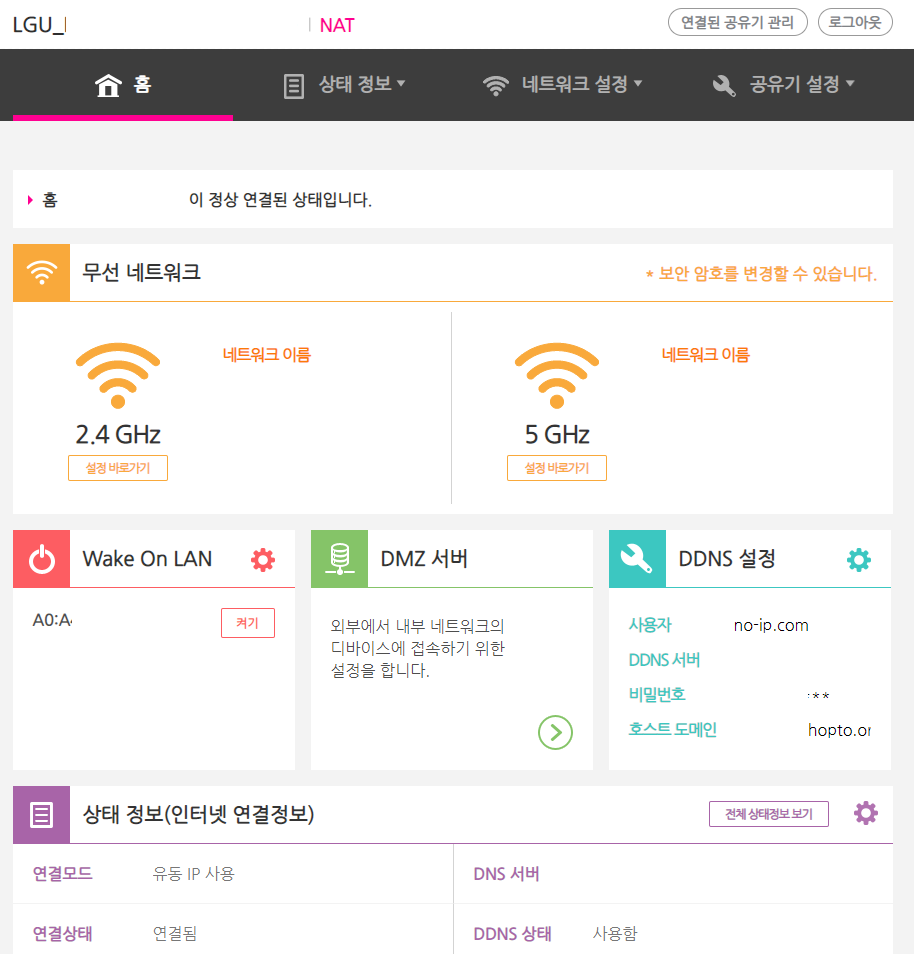
초기 패스워드는 옆에 적혀 있습니다. 유플러스 공유기는 접속하면 아래와 같이 나오게 됩니다.
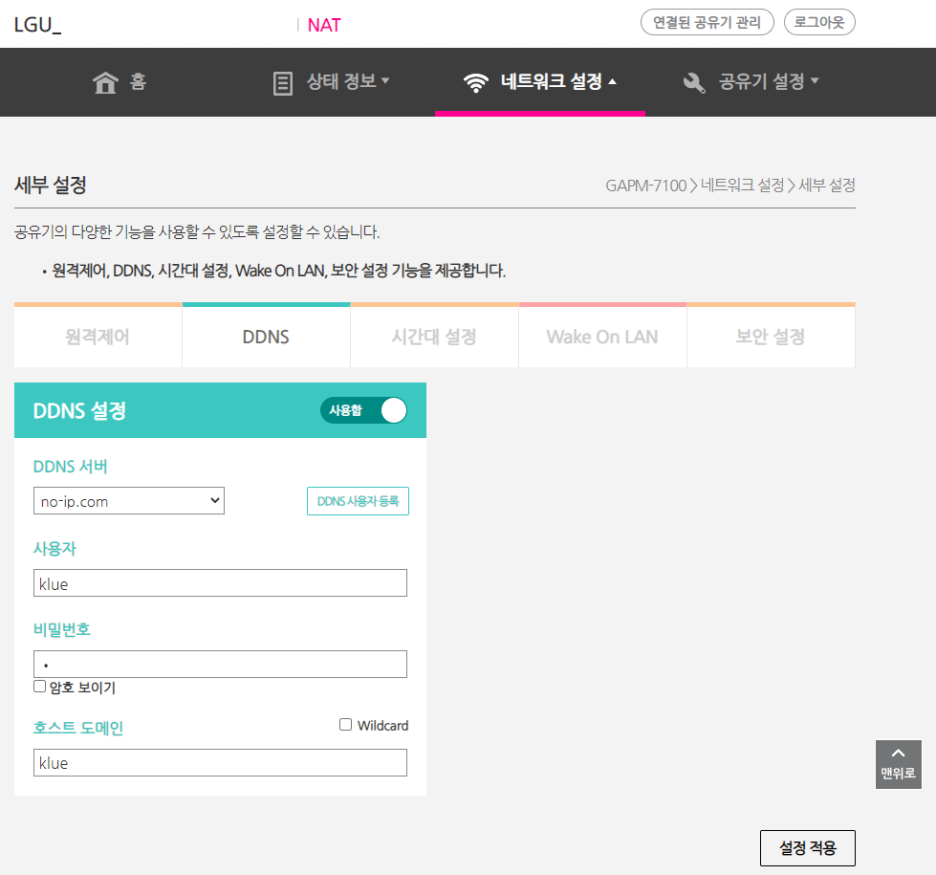
로그인 한 첫 페이지에서, DDNS 설정 옆 톱니바퀴 버튼을 눌러 DDNS 설정 페이지에 들어갑니다.
DDNS는 바로 사용할 수 있는 것이 아닙니다. 개인 DDNS를 설정하기 위해서는 해당 사이트에 가입해서 DDNS 주소를 받아야 합니다. iptime의 경우, 호스트이름.iptime.org 가 DDNS로 무료로 설정된다고 합니다.
아쉽게도 저는 iptime을 사용하고 있지 않으므로, 새로 가입하였습니다. 다른 것은 사용해보지 않았고, 무료로 사용할 수 있는 no-ip.com 에서 가입했습니다.
Free Dynamic DNS - Managed DNS - Managed Email - Domain Registration - No-IP
Currently an Oracle Dyn Remote Access Customer? If Oracle Dyn will no longer be offering your service, is requiring you to move to their cloud service, or if you're simply looking for a change, we have a solution for you. Make the switch! Stay Connected Our Dynamic DNS solution makes it easy to remo...
no-ip.com
30일마다 접속을 해서 갱신해야 한다는 말이 있던데, 만약 접속이 안 된다면 로그인해서 이 계정을 계속 사용하고 있음을 확인해주면 될 것 같습니다.
어렵지 않기에 방법만 간단하게 소개하겠습니다.
no-ip 가입 (gmail로 가입 추천 : 다른 이메일은 등록이 잘 안 되더군요)
→ Activate Account
→ Create Hostname
→ DUC 설치 (계정 페이지 → Dynamics DNS → Dynamic Update Client → Download DUC)
→ DUC 실행 및 로그인 (Username에 이메일을 넣어도 로그인 됩니다. 로그인 안 된다고 당황하지 마세요)
1. RunPod에서 Pod을 먼저 실행해야 합니다. 컨테이너가 실행이 안 되어 있으면 scp 사용이 불가능합니다.
2. RunPod과 ssh로 연결되어 있는 기기에서 cmd나 powershell 등의 터미널을 하나 엽니다.
3. 아래의 스크립트를 상황에 맞추어 터미널에 입력하여 사용합니다.
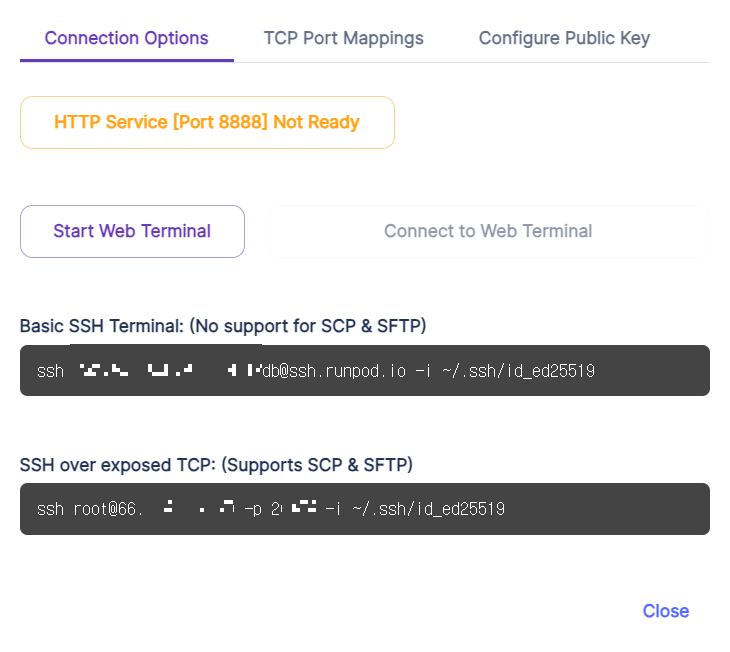
터미널에 적여 있는 포트 번호나 도메인 주소는 RunPod 컨테이너에 ssh를 사용하여 연결할 때 썼던 숫자들을 그대로 다시 사용하면 됩니다. 아래 스크립트의 첫 번째 파일 주소는 다운로드를 원하는 파일 주소이며, 두 번쨰 파일 주소는 다운로드를 받을 위치를 의미합니다.
# 로컬 컴퓨터로 파일 다운로드
scp -P PORT_NUM -i ~/.ssh/id_ed25519 root@DOMAIN:FILE_PATH DOWNLOAD_PATH (YOUR COMPUTER PATH)

# 로컬 컴퓨터로 폴더 다운로드
scp -P PORT_NUM -i ~/.ssh/id_ed25519 -r root@DOMAIN:FILE_PATH DOWNLOAD_PATH (YOUR COMPUTER PATH)

# RunPod 컨테이너로 파일 업로드
scp -P PORT_NUM -i ~/.ssh/id_ed25519 FILE_PATH (YOUR COMPUTER PATH) root@DOMAIN:DESTINATION_PATH

# example (로컬 컴퓨터로 파일 다운로드)
scp -P 13111 -i ~/.ssh/id_ed25519 -r root@123.141.122.13:/workspace/TensorRT-LLM/examples/gemma/NSYS1 C:\Users\klue\download
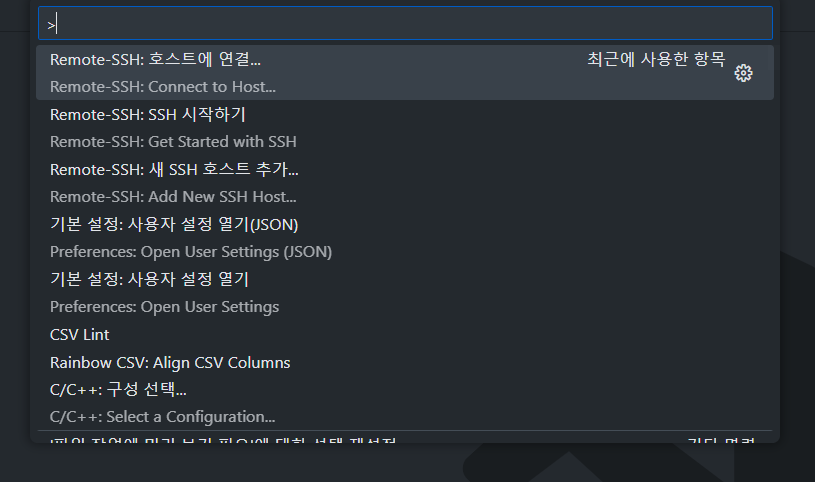
3. 아래 그림에서 보이는 항목 중에서 Remote-SSH: 호스트에 연결... 을 눌러주세요
# Remote-SSH: Get Started with SSH
# 이 항목은 이전에 연결했던 주소로 연결합니다

# Remote-SSH: Add New SSH host
# 이 항목으로 들어가면 ssh 명령어를 사용해서 연결할 수 있어요
ssh ROOT@EXAMPLE.COM -p PORT_NUM
On this page, you will download the most recent version of the software's Windows version.
먼저, ModelSim은 Windows 11에서 지원하지 않습니다. 또한 ModelSim은 업데이트가 종료되고 Questa가 새로 릴리즈되었습니다. ModelSim에서 지원하지 않았던 OVM / UVM 용 SystemVerilog 또한 지원한다고 합니다. 그래서 우리는 Individual Files에서 Questa*-Intel® FPGA and Starter Editions를 설치할 겁니다.
**설치 경로에 한글이 있으면 안 됩니다!!**
아마 다운 받아서 설치하고 나면, 실행이 안 될 겁니다 (?)
대부분 환경 변수가 설정이 안 되어 있어서 그렇습니다.
환경 변수 설정을 위해서는 먼저 License 데이터가 필요합니다. 아래에 intel에서 제공한 환경변수 설정을 위한 license 발급 방법이 나와 있습니다. 따라가 보도록 하죠.
First, ModelSim is not supported on Windows 11.In addition, ModelSim is no longer updated and Questa has been newly released.It also supports SystemVerilog for OVM/UVM, which was not supported by ModelSim. So we're going to installQuesta*-Intel® FPGA and Starter Editionsin Individual Files.
Maybe after installing it like this, it won't work (?).
This is because environment variables are not set.
License data is first required to set environment variables.Below is how to issue licenses for setting environmental variables provided by intel.Let's try to catch up.
1. Go to the Intel® FPGA Self-Service Licensing Center (SSLC).
이 작업을 위해서는 먼저 Intel에 가입해야 합니다.
가입하고 동일한 메일 계정으로 MS account도 들어가줍니다 (Azure Cloud를 사용해서 그런가 봅니다)
You must first subscribe to Intel for this task.
Sign up and enter the MS account with the same mail account (maybe it's because I use Azure Cloud)
2. Select the Sign up for Evaluation or Free Licenses option on the menu bar.
최신 화면은 아래와 같이 뜨는데, Sign up for Evaluation or No-Cost Licenses를 클릭합니다.
The latest screen appears as follows, and click Sign up for Evaluation or No-Cost Licenses.
3. In the list of products displayed, select the Questa* Intel® FPGA Starter Edition SW-QUESTA option.
Questa* Intel® FPGA Starter를 선택하시면 됩니다. 이 친구의 License가 SW-QUESTA입니다.
Choose Questa* Intel® FPGA Starter.His license is SW-QUESTA.
4. Under the # of Seats column, enter the number of seats you require. 5. Read the license terms of use. 6. Select the "I have read and agree to the terms of use of this license as listed below" check box.
7. Click Get License. A popup window displays asking you to which computer should the license be assigned. You can use one of the following options:
Option 1: Click Create a New Computer if you want to assign the license to a new computer. You must provide information about the required hardware and license type. For information about the license type, refer to Intel® FPGA Software License Types. For information about how to extract information about your computer hardware, refer to Hardware Information Required When You Request a License.
Option 2: Click Assign an Existing Computer and search for the computer name/NIC ID that you have created previously in your My Intel® account. To view your list of computers, use of the following options:
Visit the License Assistant and select Regenerate License by Primary Computer > View all computers and select.
On the SSLC menu bar, click Computers and License Files and select the desired option.
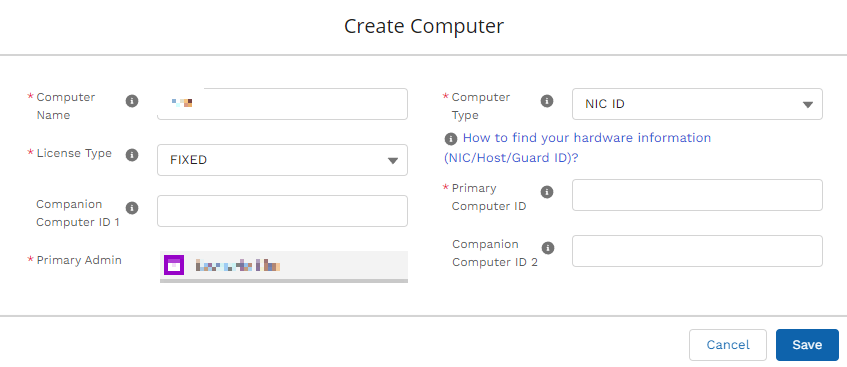
License를 만들 때 컴퓨터를 등록해야 합니다. 아래와 같은 창인데, 컴퓨터 이름은 계정 이름으로 해주시면 됩니다.
License Type은 개인 컴퓨터라면 FIXED를 추천드립니다.
Computer Type은 NIC ID를 추천드립니다 (Network Interface Card).
Primary Computer ID에 ipconfig /all (명령 프롬포트에 입력하면 나옵니다)로 확인할 수 있는 마지막 문단의 물리적 주소를 - 없이 알파벳과 숫자만 연속해서 입력해주면 됩니다.
You must register your computer when you create the license.It's the window below, and the computer name can be the account name.
For License Type, FIXED is recommended for personal computers.
Computer Type recommends NIC ID (Network Interface Card).
In the primary computer ID, enter the physical address of the last paragraph, which can be identified asipconfig /all, in succession, and only the alphabetic and numeric characters.
8. Click Generate. You receive an email with the license attached to your registered email address.
9. Save the license.dat file on your computer (for example, ~/intelFPGA_pro/LR-xxxxxx_License.dat).
위 과정을 전부 마무리하면 메일로 라이센스 데이터가 나옵니다! 그 파일 다운로드 받아주세요.
When you complete all of the above process, you will get license data by mail!Please download that file.
이렇게 라이센스 LR-xxxxxx_License.dat 파일을 Questa 설치를 했던 폴더에 넣고 윈도우에 시스템 환경 변수라고 검색을 하면 시스템 속성\고급\환경 변수가 바로 나옵니다. 먼저 LM_LICENSE_FILE 이름의 시스템 변수가 있는지 먼저 확인해주세요. 그 후에 시스템 변수(S)에 새로 만들기(W)를 하셔서
변수 이름은 LM_LICENSE_FILE
변수 값에는 라이센스 파일 경로를 입력해주면 됩니다.
제 경우에는 이렇습니다
C:\intelFPGA\LR-******_License.dat (*에는 파일 이름 그대로 입력해주세요)
환경변수 설정을 다 하고 Questa를 다시 실행해 보면, 아래와 같이 잘 나타나는 것을 확인할 수 있습니다!
When you place the license LR-xxxxxx_License.dat file in the folder where Questa was installed and search Windows forSystem EnvironmentVariables, theSystem Properties\Advanced\Environment Variablesappear immediately. First, please check if there is a system variable named LM_LICENSE_FILE. After that, make a new (W) in the system variable (S).
Variable name is LM_LICENSE_FILE
For variable values, you can enter the license file path.
In my case, it's like this.
C:\intelFPGA\LR-****_License.dat (* enter the file name as it is)
If you complete setting the environment variables and run Questa again, you can see that it appears well as below!